For EAs and PAs: the room, the desk and the visitor, booked
Everything you arrange for the people you support, in one place.
No card, no contract, nothing to install.
Creditsafe put 100 people on it in two days.

The people you support
Where they are, who is with them, and what they have not told you yet.
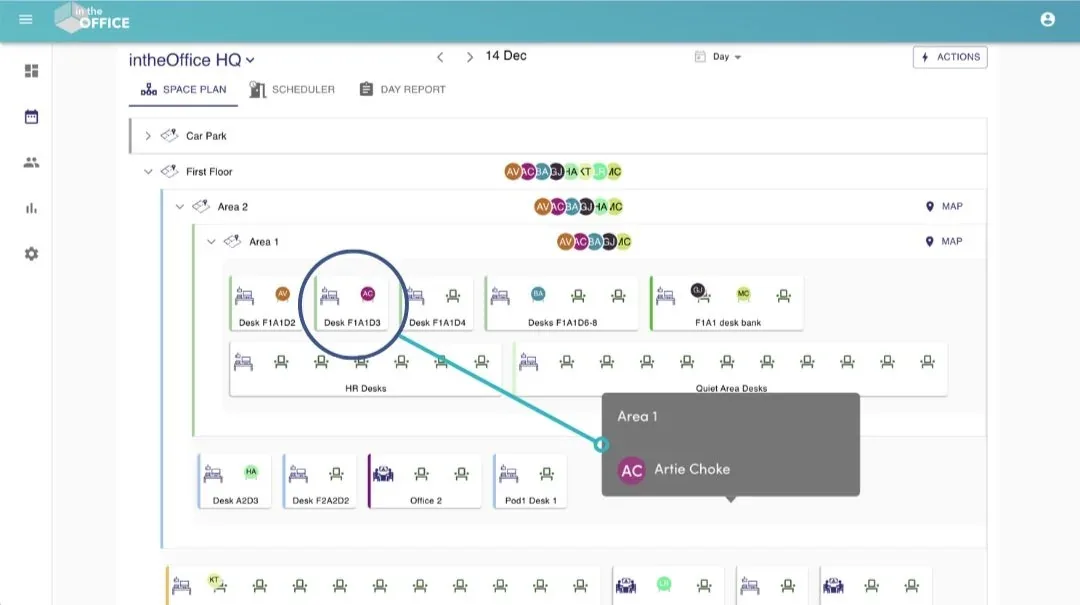
Is the CEO in today, and where are they sitting?
Everyone carries a status for each day: In the office, Working from home or Away, and, with Advanced Scheduling, Offsite for a day at a client and Split day for a morning here and an afternoon at home. The space plan puts each person’s initials on the desk or room they have booked, so you can see where somebody is sitting before you walk the length of the floor to find out.
Groups for the people you support
Create a Group for the leadership team and filter every view down to it. A person can be in as many Groups as you need, and where there is more than one office a Group can span them, so you see the people you support wherever they are.
Ask a group in on the same day
Request Attendance: pick the day, see who is available and whether there is capacity for all of them, and invite them in. Everyone invited gets an email, and the invitation can set their status to In the office for them. Part of Advanced Scheduling.
A weekly pattern nobody has to be chased for
The people you support set a weekly Routine once, office on Tuesday and Thursday and home the rest, and the schedule fills itself in ahead of them. Any single day can still be changed by hand when plans change, and you can see the Routine on their profile. Part of Advanced Scheduling.
Booked in one place
Rooms, desks, parking spaces, and the office they are travelling to.
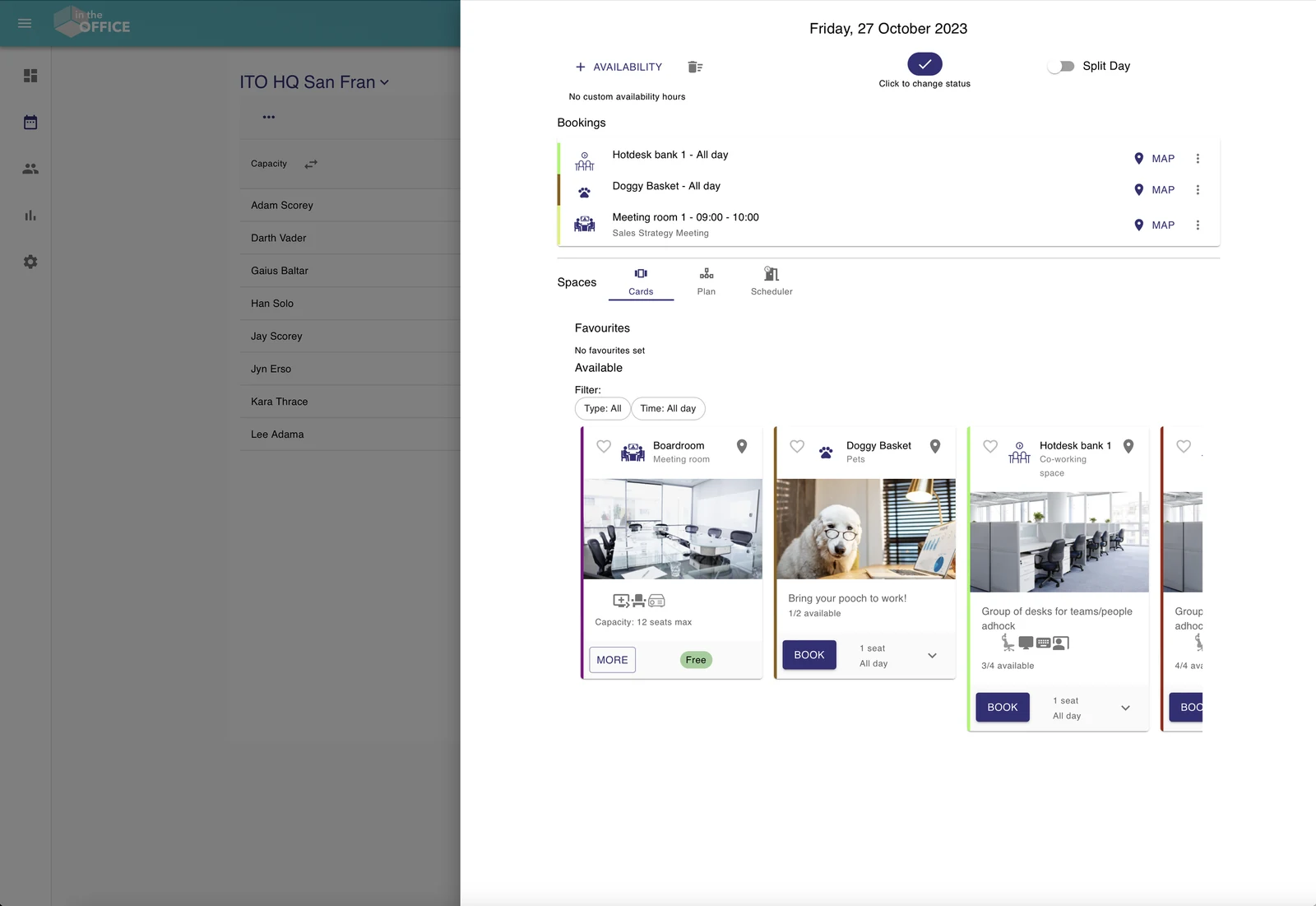
Book the room, the desk and the parking space
See what is available and book it: desks, meeting rooms, offices, co-working spaces, areas, parking spaces, lockers and pet spaces, for the day, the morning, the afternoon or by the hour. Filter by what a desk has, a second monitor or a height-adjustable desk, and save the ones you book again and again as favourites.
Rooms that hold the meeting
Book a meeting room for a time period with its attendees, and you cannot book more attendees than the room holds. A screen outside the room shows what is on now and what is next, with check-in on the screen, so a room nobody turns up to shows as available again.
Booking for somebody else
An admin can book a space for another person, so the desk for a visiting director is reserved before they land and the parking space is theirs when they arrive. Everyone else books their own.
The office they are visiting
Where you have more than one office, book a desk at the office someone is travelling to, for the day they are there, from the same schedule. Their status shows as Offsite with that office named.
The visitor at reception
Expected, checked in, and on the list that matters.
Register the guest
Create the visitor booking with arrival and departure times, email the visitor their own confirmation, and be told the moment they arrive. Visitor email addresses are visible only to the host, not to the whole company.
A kiosk at reception
Put the kiosk link on a tablet at reception: your logo, your welcome message, your wording, and your site policy or NDA ticked before check-in. It resets itself after 30 seconds, so it is ready for the next person.
Or their own phone
Print the QR code instead and visitors check themselves in by scanning it. Either way the host is emailed, a colleague can be copied in, and every visitor appears on the Live Health & Safety Register beside your staff, which is the list that goes outside in a fire drill.
The same week from their side: the schedule, the desks, the visitors and the fire register.
Sign-in, where the data is held, what is held and what is not, and the read-only API.
How intheOffice helps executive and personal assistants
- Desk booking with a floor plan
- Who is in, and at which desk, from the plan
- Groups and teams for the people you support
- Cross-location booking for the day someone works from another office
- Favourite and busiest days, with capacity for each office
- Attendance requests sent from the schedule
- Visitors pre-registered, with the host emailed on arrival
- A kiosk at reception, or a QR code on the visitor’s own phone
- Microsoft sign-in and the Microsoft Teams app
- No set-up fees and no card needed
More on intheOffice for assistants
Every kind of space
Desks, meeting rooms, offices, co-working spaces, areas, parking spaces, lockers and pet spaces, each with as many seats as it really has, bookable by the hour or the day.
Office capacity
Check how full an office will be before you ask anyone to travel to it, and export the numbers when somebody asks you to justify them.
People reporting
Attendance by day and by person over any date range, so the hybrid working policy can be checked against what actually happened.
People come and go
Add or remove people as they join and go: invite by email one at a time, or import the list from a spreadsheet.
Microsoft Teams
intheOffice runs as a tab inside Microsoft Teams, so it becomes part of the day rather than another tab to remember.
Available across all of your devices
intheOffice runs in the browser on a desktop, a laptop, a tablet or a phone, so the last-minute room or parking space is booked on the move.
Support
Support comes from the people who built intheOffice, led by the founder.
Hybrid research from intheOffice
Four short reports, as PDFs. They and the guides are on the guides and research page.
No card, no contract, nothing to install.