Scheduling
Who is in the office? Attendance scheduling for hybrid teams
Nobody knows who is coming in, and the spreadsheet is out of date by Tuesday.
No card, no contract, nothing to install.
Seven in ten of our customers run their office on Scheduling alone.

Scheduling is the part of intheOffice that answers "who is in the office on Thursday?". Each person sets In the office, Working from home or Away for each day with one click, and managers see the week for a team or the whole company, with a capacity gauge on every day. It is for UK offices of 30 to 250+ people.
What changes on Monday
Everyone's day is one click
In the office, Working from home or Away, set on the chip beside their name. Nobody updates a spreadsheet.
You see the week
One grid of people against days, filtered to a team, a Group or the whole company.
The gauge goes amber before the office is full
Capacity shows on every day, so a busy Thursday is visible on Monday and people can move their day.
Rolling it out
The first week is everyone setting their day; that is the whole job.
What it costs
Scheduling: £0.97 per person per month, billed daily, plus VAT.
Advanced Scheduling: +£1.09 per person per month, billed daily, plus VAT, on top of Scheduling.
The 7-day trial starts when the first module is switched on, not at signup.
In use at Creditsafe
Creditsafe rolled intheOffice out across four offices in Ireland, Cardiff and the Netherlands. For Cardiff and Ireland they chose a big-bang launch: over 100 people were using it within the first two days, and over 72% of the office within two weeks, replacing a desk booking system whose contract was ending.
What can you do in Scheduling?
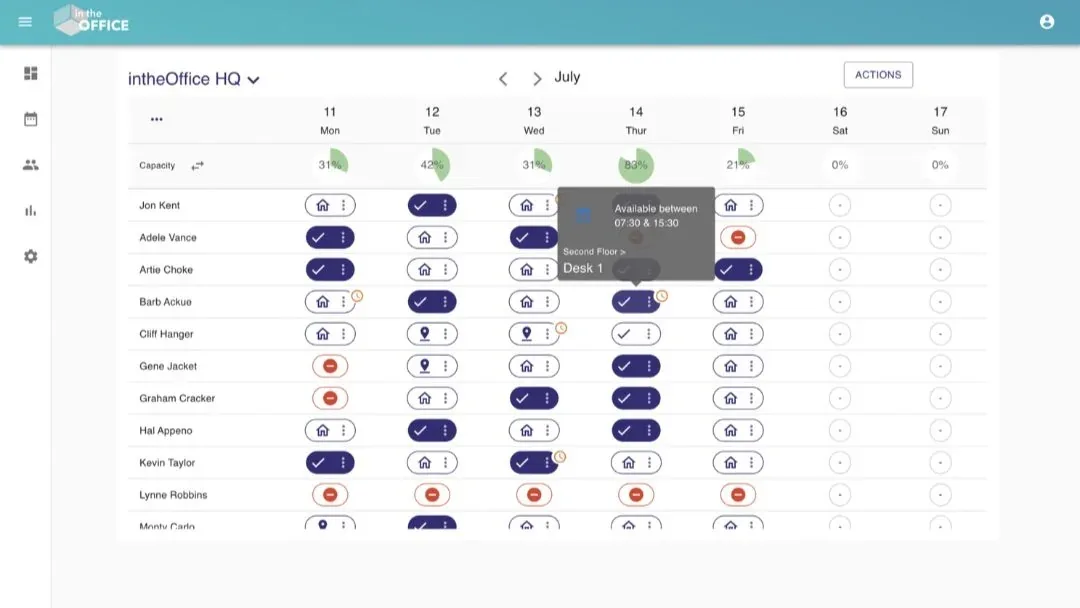
In the office, Working from home or Away
Each person sets a status for each day. One click on the chip cycles through the three, and everyone sees the change at once. Advanced Scheduling adds two more: Offsite, for a day at a client or another office, and Split day, for a morning in the office and an afternoon at home, with capacity counted for each half.
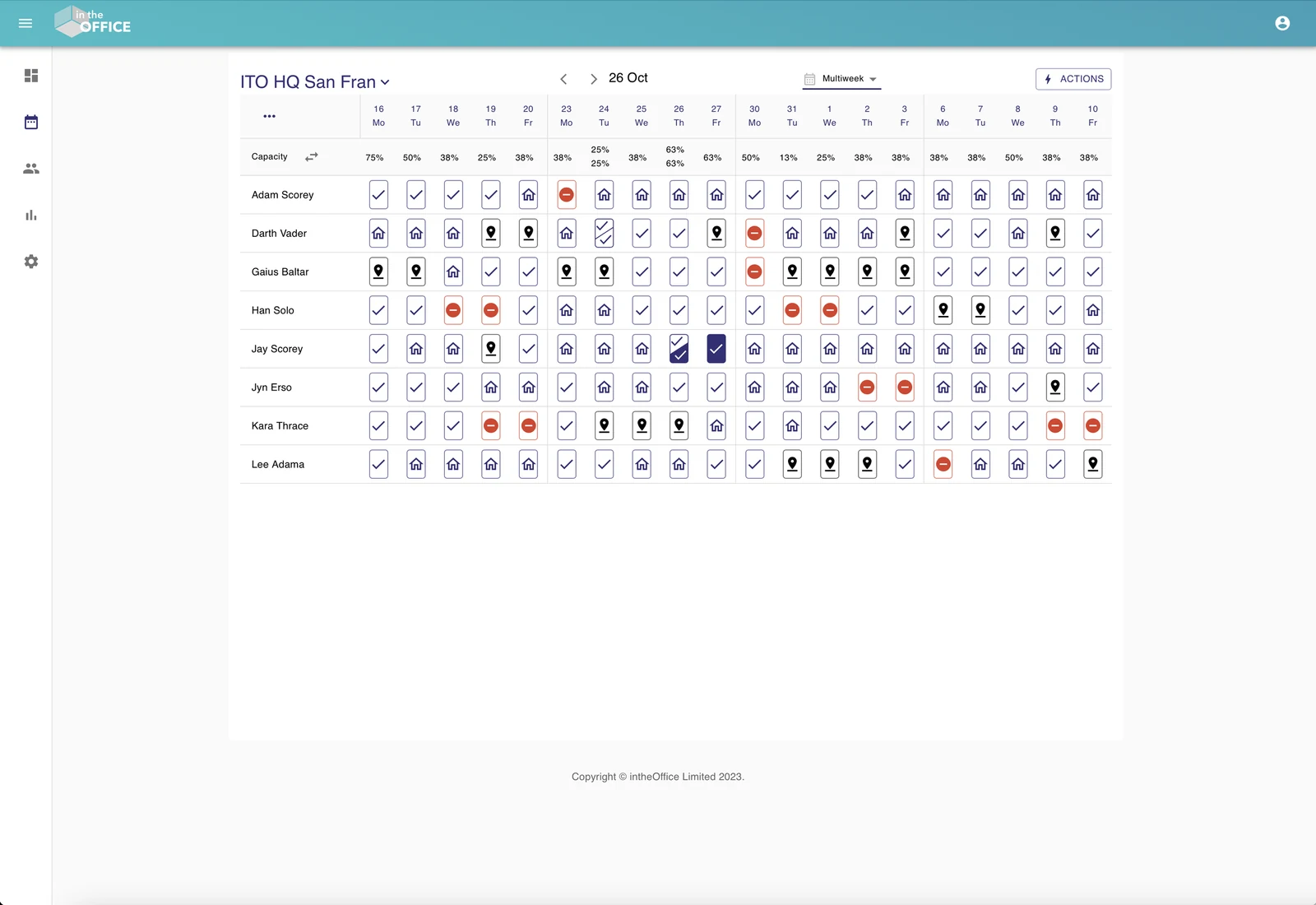
The week, or several weeks
The schedule is a grid of people against days. Look at a day or a week, hide the weekend, and the view you choose is remembered. The multi-week view, part of Advanced Scheduling, shows several weeks at once for planning further ahead.
Capacity as a gauge
Set the capacity of the office as a headcount, a percentage or the number of desks. The gauge on each day turns green, amber then red as the day fills, and a day that is over capacity is flagged.
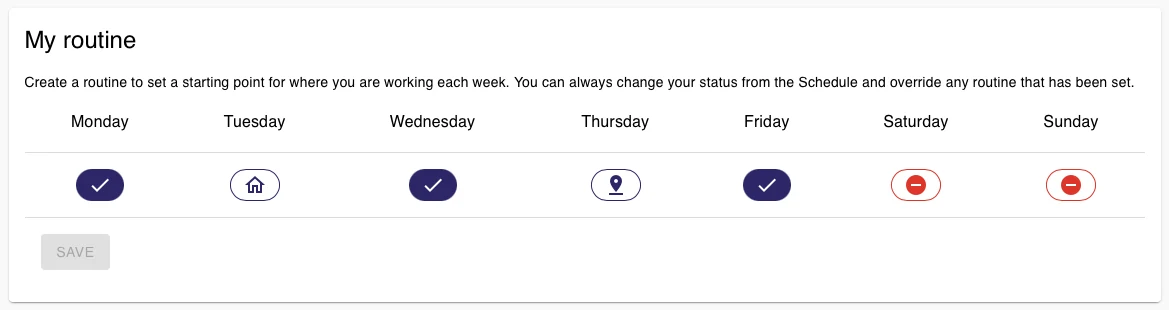
Routines fill the schedule in
Set a weekly pattern once, office on Tuesday and Thursday and home the rest, and the schedule fills itself in ahead of you. Change any day by hand without breaking the pattern. Part of Advanced Scheduling.
Daily Availability
Mark the hours you are available or unavailable, whatever your status: the school run, the gym, the 4pm train. Colleagues see it on your chip. Part of Advanced Scheduling.
Request Attendance
Pick a day, see who is available and whether there is capacity for all of you, and invite colleagues in. Everyone invited gets an email, and the invitation can set their status to In the office for them. Part of Advanced Scheduling.
Who is the fire marshal?
Tag people as Health and Safety Officer, First Aid Responder, Office Key Holder or Fire Marshal. The roles are visible to the whole team as icons, so anyone can find the nearest first aider without asking. They grant no permissions.
Scan In at the door
Every location gets its own QR code, printable as a poster for the entrance. People scan it with their phone on arrival and are checked in; scanning again checks them out. If they had not set a status it offers to set one, and checking in at a second office checks them out of the first.
The Live Health & Safety Register, for the fire drill
The Register lists everyone on site right now, staff and visitors together, with who has checked in and who has already left. It exports, so the roll-call can be taken outside the building.
Editing past days
Admins decide whether people can edit previous days: always on, off until switched on each time, on for admins at their primary location only, or disabled altogether. The attendance record stays what it was, where that matters.
Add to Scheduling
Groups
Create teams and filter every view down to them. A person can be in many Groups, and a Group can have its own admin, so a team lead manages their own people. Groups make a 200-person schedule readable.
Multiple Locations
A location for each real office, each with its own capacity, spaces, Groups and settings, on one people list. Someone working from another of your offices shows as Offsite, with that office named.
Advanced Scheduling
Routines, the Offsite and Split day statuses, Daily Availability, Request Attendance, the multi-week view and the controls on editing past days, all described above.
Frequently asked questions
How do I know who is in the office on a given day?
Open the schedule. Everyone's status for the day is on one grid: In the office, Working from home or Away. Filter to a team or a Group, or look at the whole company for the week or the month.
Do people have to set their day every day?
No. With Advanced Scheduling each person sets a weekly Routine once, and the schedule fills itself in. Anyone can change a day when plans change.
What is hybrid working, and does intheOffice need a policy first?
Hybrid working means some days in the office and some elsewhere. You do not need a written policy to start; you can start with the schedule and write the policy from what it shows you.
Does it work in Microsoft Teams?
Yes. intheOffice runs as a tab in Microsoft Teams, so people set their day without leaving Teams, and staff can sign in with their Microsoft account.
Does the Register include visitors?
Yes. The Register lists everyone on site, staff and visitors, with who has checked in and who has left, and it exports for the evacuation roll-call.
More products from intheOffice
No card, no contract, nothing to install.