Space Plan
See where the desk is before you book it.
New feature, for Premium subscribers. Spaces used to be cards: the offices, hot desks, parking spaces and other options in the location you had chosen. Upload a plan of the floor and place those spaces on it, and people can see where a desk is, take one near the colleagues they came in to work with, or find the quiet corner. The plan is yours, so it changes the moment you change it.

Space Plan in detail
What the plan shows
Each space on the plan carries the places still available and the initials of the colleagues already booked into it. Spaces that book for a whole day appear on the plan; spaces that book by the hour are in the Cards menu.
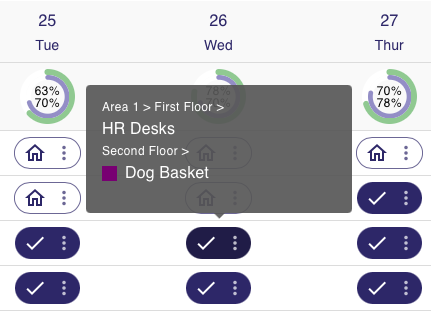
Day view
Choose Day on the Schedule page and every space and desk is on the plan, ready to book when your status for that day is In the office. Green circles carry the initials of the people already there.
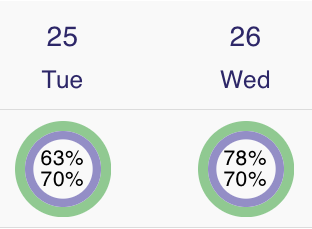
Week view
Open the Spaces window from the three dots on your status and choose Plan to see the whole floor for that day, with everything still available and who is in.
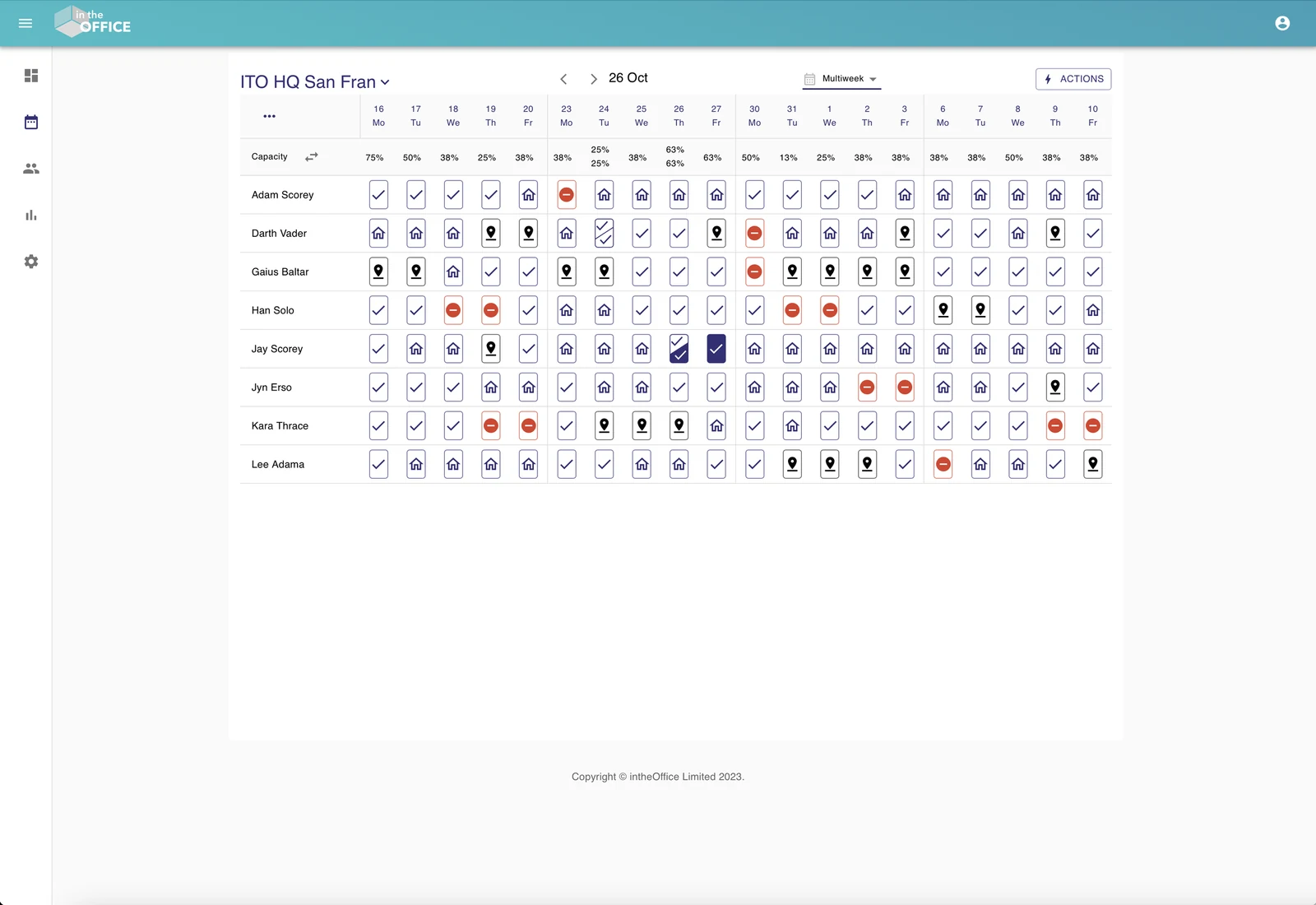
Multiweek view
From the longer view, the tick icon opens the same Spaces window and the same plan, for any day in the weeks on screen.
The daily status icons
On the Dashboard and the Schedule page, these are the icons beside a name and what each one means.
- Tick: In the office
- Three dots: opens the Spaces window, to book or to look
- House: Working from home
- Offsite: at a client, a conference or another of your offices
- No entry: Away
More support from intheOffice
- Software updates
What has changed in intheOffice, newest first.
- Help videos
Short videos of the app, page by page, from the dashboard to reporting.
- Articles
Writing on hybrid working, desk booking and running an office people come back to.
- User guide
The online guide for everyone using intheOffice.
- Admin guide
The online guide for administrators: people, spaces, locations and settings.
- User guide (PDF)
Basic navigation, as a 14-page PDF from June 2024.